%20200%20px%20X%2040%20px.png?width=200&height=40&name=Protiv%20Global%20Logo%20(White)%20200%20px%20X%2040%20px.png)
Before You Start
Make sure you have:
-
Admin access in Protiv
-
Admin access in Boss
-
Two browser tabs open
-
one for Boss
-
one for Protiv
-
Using Google Chrome works best for this setup.
If you don’t see the API option in Boss later in the steps, your account may not have it turned on.
You’ll need to contact Boss support and ask them to enable API access.
Step 1: Open Protiv
- Go to platform.protiv.com and log in.
- Go to the Integrations page.
- Find Boss by Integra and click Connect.
You'll see a form with three fields:
- Unique Boss URL
- Client ID
- Secret Key
Keep this tab open. You'll fill in each field one at a time in the steps below.
Step 2: Get Your Boss URL
- Switch to your Boss tab.
- Look at the address bar at the top of your browser.
- Copy the full URL.
- Mac: Command + C
- Windows: Control + C
- Switch back to Protiv and paste it into the Unique Boss URL field.
Step 3: Find Your Client ID in Boss
- In Boss, click System Settings in the left navigation.
- In the top-right corner, select Manage System Settings.
- At the top of the page, click the Company tab.
- Find the Company Name field.
- Copy it.
- Switch back to Protiv and paste it into the Client ID field.
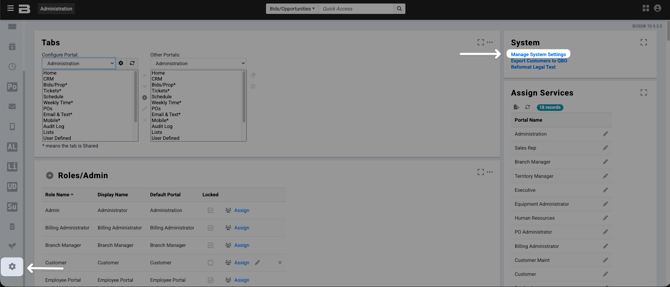
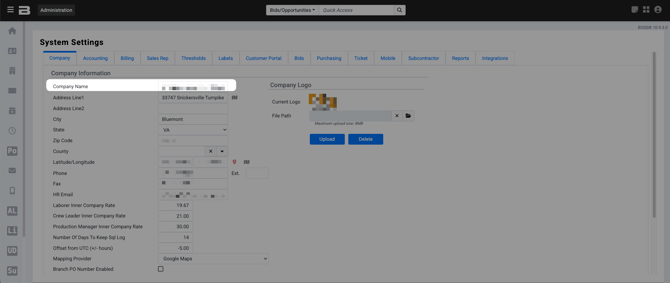
Note: The Client ID is your company name exactly as it appears in Boss. Copy it exactly, spelling and capitalization matter.
Step 4: Find Your Secret Key in Boss
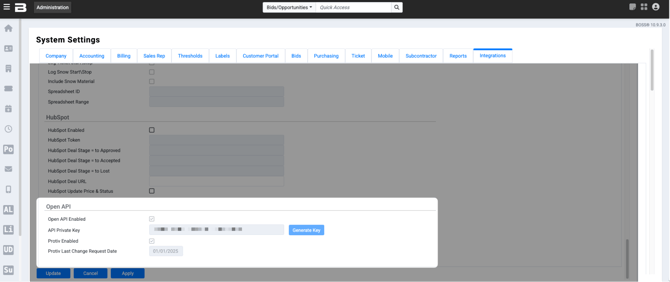
- On Integrations, scroll down to the Open API section.
- Confirm that Open API Enabled is checked.
- Confirm that Protiv Enabled is checked.
- Find the API Private Key field.
- If a key is already there, copy it.
- If the field is empty, click Generate Key, then copy the key that appears.
- Switch back to Protiv and paste it into the Secret Key field.
Step 5: Complete the Connection
Once all three fields are filled in Protiv:
- Click Connect.
Protiv will begin syncing your Boss data. This may take a few minutes.
Step 6: Confirm Your Data Is Syncing
Once the sync runs, go to Settings in Protiv and check that your data came in:
- Divisions — these are your revenue classes from Boss. They should appear (for example: Maintenance, Fertilizer, Irrigation, Landscape)
- Routes — your active routes should be listed
- Team — your crew members should appear
If anything is missing, wait a few minutes and refresh the page.
Still need help? Email or call us!
Email us at help@protiv.com: This is the fastest way to get a response. You can expect a reply in 1-2 hours during business hours.
Call us at +1 848-220-1416: You can also call us during business hours, weekdays from 9 am to 6 pm EST.