%20200%20px%20X%2040%20px.png?width=200&height=40&name=Protiv%20Global%20Logo%20(White)%20200%20px%20X%2040%20px.png)
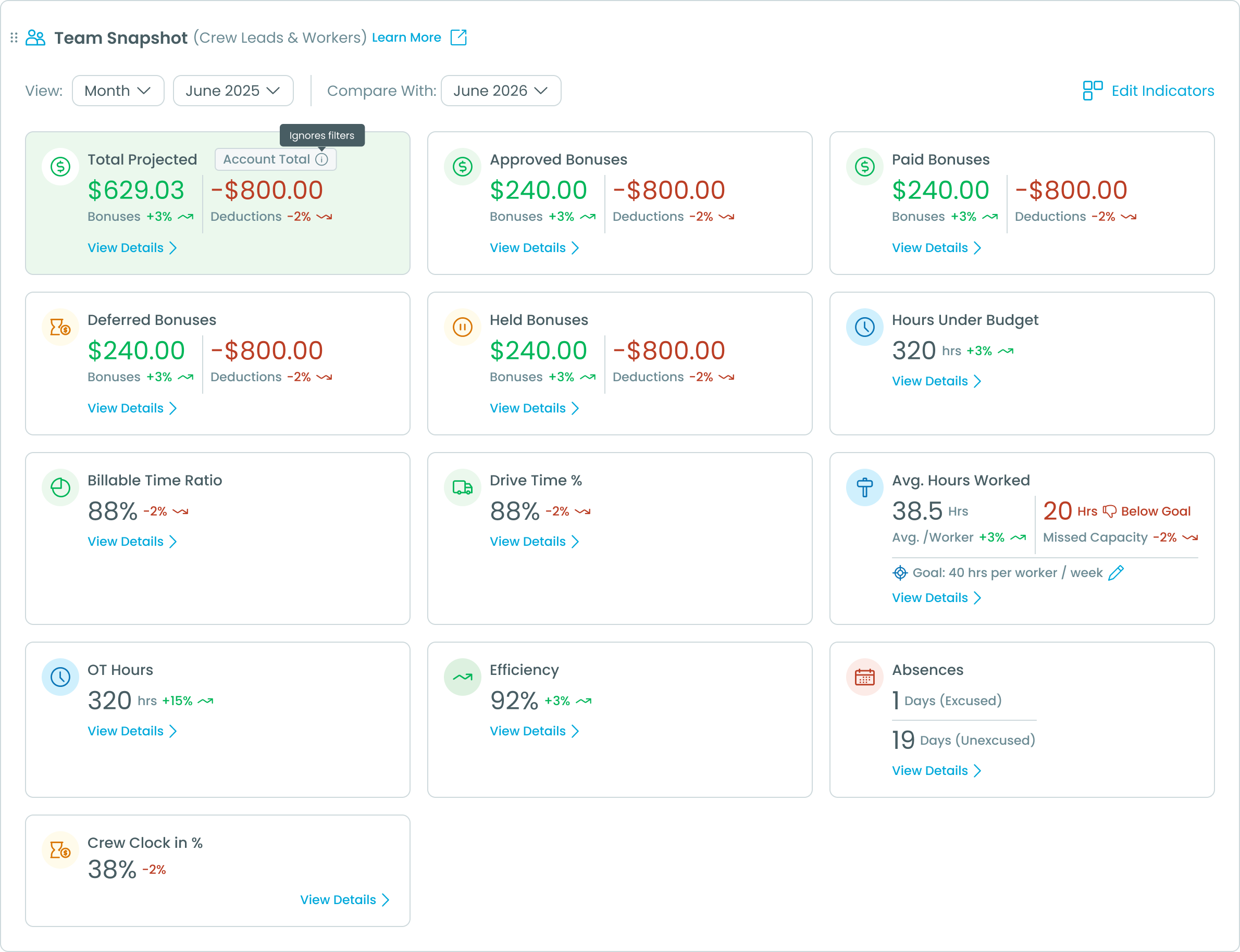
Team Snapshot is the section of your Protiv dashboard that gives you a quick, big-picture read on how your team is doing. Instead of jumping between reports, you get a row of metric cards covering bonuses, hours, efficiency, attendance, and more — all in one place. 🙌
What makes it especially handy is comparison. You can look at this month versus last month, this quarter versus last quarter, or any custom range you choose, and instantly see whether the numbers are trending up or down. You can also tailor the view to show only the metrics that matter to you. Let's walk through what's on offer.
💰 Bonus Metrics
These cards track the bonuses your team is earning and where they are in the payout process.
- Total Projected: Your account's year-to-date total of projected bonuses and deductions. This card always shows the full year-to-date number, so it ignores the period filter at the top of the page. Click into it to open a detailed projected breakdown page.
- Approved Bonuses: Bonuses that have been approved within the period you've selected. This one respects the period selector and compares against your chosen compare period.
- Paid Bonuses: Bonuses that have actually been paid out to your team, linked to their statements.
- Deferred Bonuses: Bonuses that have been placed in a deferred status (set aside for later).
- Held Bonuses: Bonuses currently placed on hold.
⏱️ Hours & Efficiency Metrics
These cards help you understand how your team's time is being spent and how it stacks up against budget.
- Hours Under Budget: The total hours your team saved compared to budget across all workers in the period. A higher number means jobs are coming in efficiently.
- Billable Time Ratio: The percentage of your team's tracked time that is billable.
- Drive Time %: The percentage of total time spent driving rather than on productive work.
- OT Hours: The number of overtime hours worked during the period.
- Efficiency Score: A budget-vs-actual efficiency percentage that shows how close your team is running to plan.
- Avg. Hours Worked: The average number of hours each worker puts in per week. This card has a configurable goal you can edit right on the card — just click to set the target you're aiming for. 🎯
🗓️ Attendance Metrics
These cards keep an eye on who's showing up and showing up on time.
- Absences: A count of excused and unexcused absence days during the period.
- Crew Clock-in %: The percentage of crew members who clocked in on time.
⚙️ Using the Period Selector & Comparisons
At the top of Team Snapshot you'll find controls for choosing your time window:
- Period selector: Switch between Month, Quarter, Year, or a Custom date range.
- Compare With: Turn this on to compare your selected period against another (for example, this month vs. last month).
- Delta chips: When comparison is on, each card shows a small colored chip with the percentage change versus the compare period. Green means the metric improved, red means it slipped, and the arrow shows the direction of the change. ⬆️⬇️
💡 Keep in mind that Total Projected always reflects year-to-date totals and won't change when you adjust the period filter.
🔍 Digging Into the Details
Most cards include a View Details link. Click it to open a full table with individual worker rows, so you can see exactly who's contributing to the number and follow up where needed.
🛠️ Customizing Your View
- Edit Indicators: Use this button to show or hide metric cards so the snapshot reflects only what you care about. Note that Total Projected, Hours Under Budget, and Avg. Hours Worked are always visible and can't be hidden.
- Refresh: Click the refresh button to clear the cached data and pull the latest numbers. Handy if you've just made changes elsewhere and want them reflected right away. 🔄
❓ Frequently Asked Questions
Why doesn't Total Projected change when I switch periods? Total Projected is intentionally always year-to-date. It gives you a running account-level view of projected bonuses and deductions, so it ignores the period filter while every other card responds to it.
What do the green and red chips mean? They show how a metric changed versus your compare period. Green is an improvement, red is a decline, and the arrow points in the direction of the change. Chips only appear when "Compare With" is turned on.
Can I hide cards I don't use? Yes — open Edit Indicators and toggle cards on or off. Three cards (Total Projected, Approved and Paid bonuses) stay visible at all times.
How do I set a target for average hours worked? The Avg. Hours Worked card has an editable goal. Just click the goal on the card and enter your target — the card will show how your team measures up against it.
My numbers look out of date. What should I do? Click the Refresh button at the top of Team Snapshot to reload the latest data. This pulls in any recent changes so you're always looking at the most up-to-date numbers
Where can I see individual worker numbers? Click View Details on any card that offers it to open a full table broken down by the worker.